
On this page
CONNECTIONS
Wi-Fi connections
Join a local network or connect directly to the Dash at the track.
For downloads, put the PC and Dash on the same local network, or connect the PC directly to the Dash access point.
Connect directly to the Dash
- Stop logging. Open WIFI and tap START DELTALOG DASH ACCESS POINT.
- On the PC, choose the Dash wireless network. The factory network name is DeltaLog Dash.
- Enter DeltaLogDash as the factory password, or the configured password if it has been changed. Names and passwords are case-sensitive.
- Stay connected even if Windows reports no internet access. Check the IP shown on the Dash.
- Open DeltaLog’s logger download function and select the discovered Dash by its device name. Continue with download instructions.
Join an existing network
- Open WIFI → JOIN NETWORK and wait for the scan.
- Tap the required network. LOCK means it needs a password. Use PREV/NEXT to browse; RESCAN refreshes the list.
- Enter the network password and tap CONNECT. Check the confirmation, network name and IP address.
- Connect the PC to the same local network. Avoid guest networks that prevent clients from talking to one another.
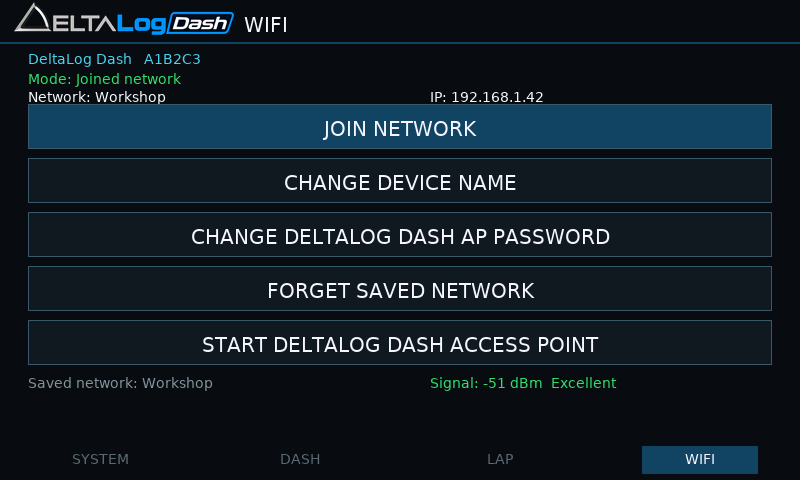
Wi-Fi controls
| Control | Action |
|---|---|
| JOIN NETWORK | Scan and connect to a router/network. Successful credentials are saved. |
| CHANGE DEVICE NAME | Give the logger a recognisable discovery name, particularly when several are in use. |
| CHANGE DELTALOG DASH AP PASSWORD | Set the direct-connection password. The screen requires 8–63 characters. Reconnect the PC using the new password. |
| FORGET SAVED NETWORK | Clear the saved router network credentials. |
| START DELTALOG DASH ACCESS POINT | Start a direct wireless connection for the PC. |
Use the on-screen keyboard
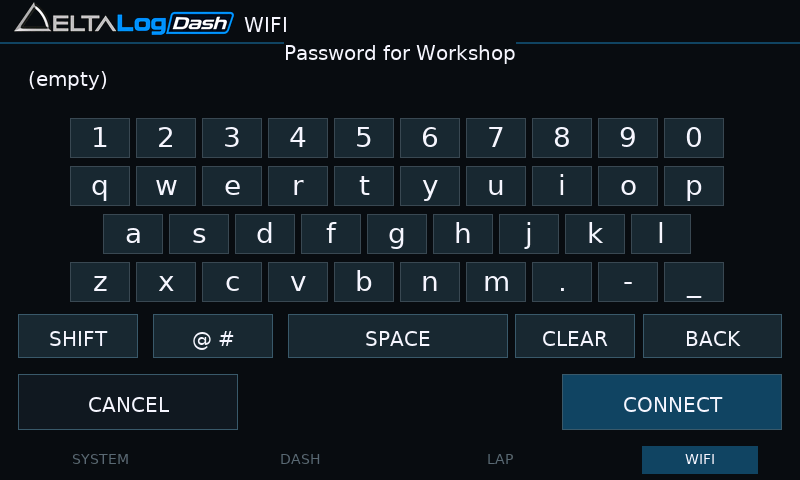
SHIFT changes letter case; @ # opens symbols; ABC returns to letters. SPACE adds a space, CLEAR empties the entry and BACK removes a character. CONNECT or SAVE confirms; CANCEL leaves without accepting the edit.
If discovery fails
Check the displayed IP and signal, confirm both devices are on the same network and retry. If a router or guest network blocks discovery, use the Dash access point directly. If the connection attempt fails, the Dash restores the access point; check the screen before reconnecting.