
On this page
USING THE DASH
Sleep & wake
Set the inactivity timer and understand what should happen on wake-up.
The Dash enters standby after eligible inactivity. Touch or CAN activity wakes it.
Set the timeout
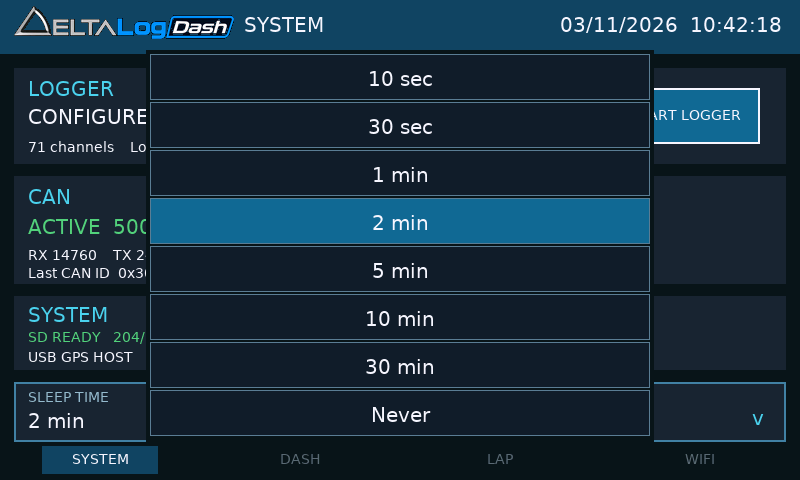
Open SYSTEM → SLEEP TIME and choose 10 sec, 30 sec, 1 min, 2 min, 5 min, 10 min, 30 min or Never. The choice is saved immediately. The default is two minutes; Never disables automatic standby.
When will it sleep?
Touch and incoming CAN traffic refresh the inactivity timer. A mounted PC USB connection and an active Wi-Fi file download inhibit standby. The download hold also covers the short gaps between files in a batch.
If the Dash stays awake with a running ECU connected, check CAN activity before assuming a fault. Stop recording before deliberately testing sleep.
Wake and GPS recovery
Touch the display or resume CAN activity. During standby, the display turns off and the USB GPS connection is suspended. After wake-up, the display and GPS connection are restored. Allow the receiver to reconnect and check the fix before relying on lap timing.
STANDBY ERROR – REBOOT
If LCD shutdown or USB host teardown fails, the Dash aborts standby, restores the screen and can latch STANDBY ERROR - REBOOT with a stage/code in the USB settings area.
- Record the exact text and stage/code.
- Stop any recording or transfer that is still active, then power-cycle the Dash.
- Recheck GPS connection and fix. If the error repeats, report the code and firmware/build details for diagnosis.
Quick bench check
With logging stopped, no CAN traffic and no PC USB connection, select 10 seconds. Confirm the LCD goes dark, wake by touch, then check screen alignment and GPS recovery. Restore your normal timeout afterwards. If it repeatedly fails, use Never temporarily while arranging a firmware check.